Trade Studies
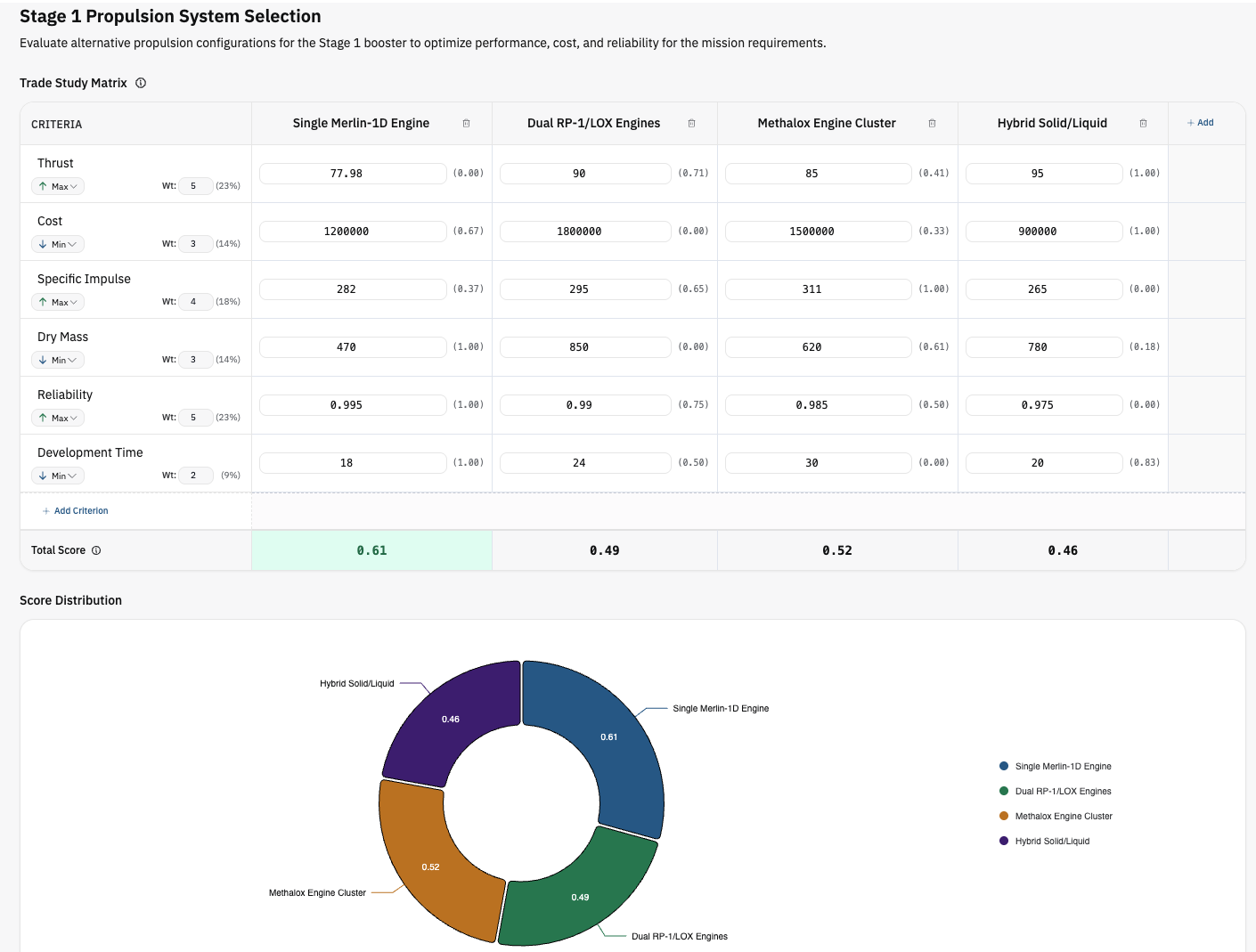
Compare alternatives side-by-side to choose the best option.
How to use it:
- Open Trade Studies from the Left Sidebar
- Create a new Trade Study
- Add criteria in the left column like Reliability and Cost
- Add subsystem configurations as new columns and enter in how they score on each criteria
- See the auto-computed results and winner of the study in real-time
Excel Analysis
Integrate Dalus with Excel to feed inputs to your spreadsheets, "run" the sheet, and set outputs back to Dalus.
How to use it:
- Select an Action node and open the Right Sidebar
- Switch the environment from Python to Excel
- Pick an Excel file and sheet from OneDrive or upload from your device
- To send Dalus input variables to an Excel Sheet cell, simply click Pick a Cell and click on the pick the cell under the variable
- To read a cell and set it to a Dalus output variable, again, simply pick the cell under the variable
- Click Run to send Dalus input variables to each input cell, run the Excel sheet, and then set Dalus output variables from each output cell.
Improvements
- Requirement management now supports customer IDs
- Update messages display as lightweight toasts
- Temporary port handles become permanent with a click